
The easiest way to delete a batch of items is to use the Item Status screen. You should work with batches of no more than 200 items at a time.
Item Status
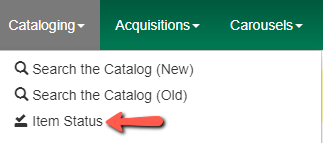
The Item Status page allows you to create a batch of items, select them, and apply an Action to them, in this case, to delete them. You can get to Item Status from the Portal Page or Cataloging menu at the top of the screen.

Scan or Upload Barcodes
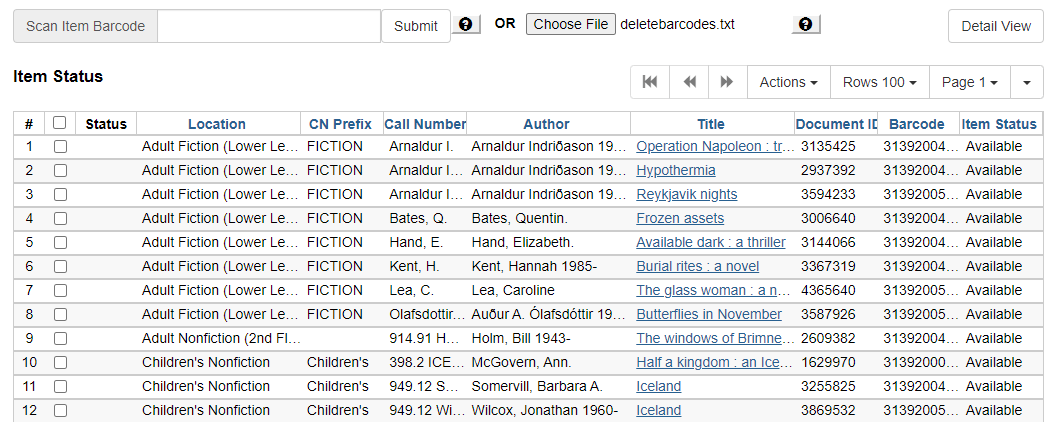
Scan the item barcodes into the barcode box, one after another.
As an alternative, you can use a plain text file of scanned barcodes. The file should have no spaces or periods. You can create a file by copying the barcodes from a spreadsheet and pasting them into Notepad or any text editor, or by scanning the barcodes directly into the text editor. Click on Upload from File and browse to find the file on your computer.
Select Items
Use the checkbox at the top of the checkbox column to Select All, or check individual items to select them.

Delete Items
